How to backup a Postgresql database to Azure daily, using Java on Linux
In this post, i have explained how i am using java and Azure File Share to backup my postgresql database of this blog daily. I am also sending an informative email about the process, to myself. Of course there are cloud solutions to backup and even restore database. But you for some reason, you may not want to pay extra cost for a separate database service. In this case, you can have your own database inside your rental VPS, virtual private server. Of course this means that if something happens to your server, you would also lose your data. This was exactly the situation i was facing :)
Even though it is a specific case, i like solving problems with my own ways. I am using a simple database for this blog, therefore i didn't want to pay for a separate database. Again, there must definitely be another solution to this. But i also learned about cronjobs and using CLI to backup postgresql. We have a 5 steps plan to achieve this system.
- Running the command line to backup the postgresql database in java
- Prepearing the Microsoft Azure File Share
- Uploading the backup file to Azure File Share
- Emailing the result
- Making it work daily as Cron job in Linux
Postgresql backup java codes
It is possible to create a backup of a postgresql database with a command line command. You can do this with pg_dump after installing PgAdmin. It is the same command in both Linux and Windows. But the java code can vary a little bit. So i will write 2 methods separately. The descriptions are in the comments.
public int exportDbLinux(String filePath)
{
	// the result code should be 0
	int exit = -1;
	// java.lang.Process class
	Process p;
	try
	{
		p = Runtime.getRuntime().exec(new String[]
		// the parameters below will backup the database with data and sequences and their values
		// "blogsema" is the schema name and "blog" is the database name, since there are schemas under databases in postgresql
		{ "pg_dump", "--format", "p", "--blobs", "--file", filePath, "--create", "--inserts", "--column-inserts", "--no-comments", "--encoding", "UTF8", "--schema", "blogsema", "blog" });
		// this line gets the error info if there is an error
		final BufferedReader r = new BufferedReader(new InputStreamReader(p.getErrorStream()));
		String line = r.readLine();
		StringBuilder builder = new StringBuilder();
		while (line != null)
		{
			line = r.readLine();
			builder.append(line + "\n");
		}
		if (!builder.toString().equals(""))
		{
			// if there is an error during the process, i will email it, the method is below in the post
			sendMail("Process error stream = " + builder.toString(), false);
		}
		r.close();
		p.waitFor();
		// the result of the process should be 0, otherwise there is an error
		exit = p.exitValue();

	}
	catch (IOException | InterruptedException e)
	{
		// send error mail if an exception happens
		sendMail("Postgrexc = " + e.getMessage(), false);
	}
	return exit;
}
There is an important detail here. For some reason, i couldn't pass the database parameter to pg_dump on linux. You might need an environment variable or a special command or something here. If you want to pass the password parameter too, you can get help from this example. The below method is the same thing for windows operating systems. The password is included here.
public int exportDbWindows(String filePath)
{
	// the result code should be 0
	int exit = -1;
	// java.lang.Process class
	Process p;
	ProcessBuilder pb;
	// the parameters below will backup the database to a file with data and the sequences and their values
	// you need to change server_ip and server_port, port is by default 5432 if you haven't changed
	// not sure but the ip may not work as 127.0.0.1
	// no-password requeires no password in the command line but we still set it later
	// "blogsema" is the schema name and "blog" is the database, change these
	// there are schemas under databases in postgresql
	// postgresuser is the database username but yours would be different
	// You may want to check where PgAdmin is installed
	String pg_dump_path = "C:\\Users\\numan\\AppData\\Local\\Programs\\pgAdmin 4\\v6\\runtime\\pg_dump.exe";
	pb = new ProcessBuilder(pg_dump_path, "--host", "<server_ip>", "--port", "<server_port>", "--username", "postgresuser", "--no-password", "--format", "p", "--blobs", "--file", filePath, "--create", "--inserts", "--column-inserts", "--no-comments", "--encoding", "UTF8", "--schema", "blogsema", "blog");
	try
	{
		final Map<String, String> env = pb.environment();
		// the password for postgresuser
		env.put("PGPASSWORD", "<password>");
		p = pb.start();
		// start the process and get the error if any
		final BufferedReader r = new BufferedReader(new InputStreamReader(p.getErrorStream()));
		String line = r.readLine();
		StringBuilder builder = new StringBuilder();
		while (line != null)
		{
			line = r.readLine();
			builder.append(line + "\n");
		}
		if (!builder.toString().equals(""))
		{
			// send error mail if there is one
			sendMail("Process error stream = " + builder.toString(), false);
		}
		r.close();
		p.waitFor();
		// process result code must be 0, otherwise means error
		exit = p.exitValue();

	}
	catch (IOException | InterruptedException e)
	{
		// send error mail if there is one
		sendMail("Postgrexc = " + e.getMessage(), false);
	}
	return exit;
}
So how am i using these codes?
// basckup file if you are using windows
// String filePath = "C:\\Users\\<your_user>\\Desktop\\blogbackup.sql";
// basckup file if you are using linux
// String filePath = "/home/<your_user>/Desktop/blogBackup.sql";
// this is an sql file that can be opened with notepad
// you can also make a backup with unreadable zip format, but that requires different parameters
String res = "";
if (exportDbLinux(filePath) == 0)
{
	res = uploadFile(filePath);
}
if ("".equals(res) || res == null)
{
	// if there is an error or something
	sendMail("RES = null", false);
}
else
{
	// if there are no errors, i will add the size information in KB in the mail
	// so that i can realize if something goes wrong
	// like database is destroyed without my knowledge
	sendMail("Blog backed up " + ((double) new File(filePath).length() / 1024.0), true);
}
Backup file creation process is done. Now it is time to configure Azure File Share.
Azure File Share configuration
First, you need an account on Microsoft Azure. I can't write those steps but you need a subscription, a payment method and a Storage account as a resource. After creating the Storage account, i will show you the File Share configuration with screenshots. Then i will add the codes to upload this file to that File Share.
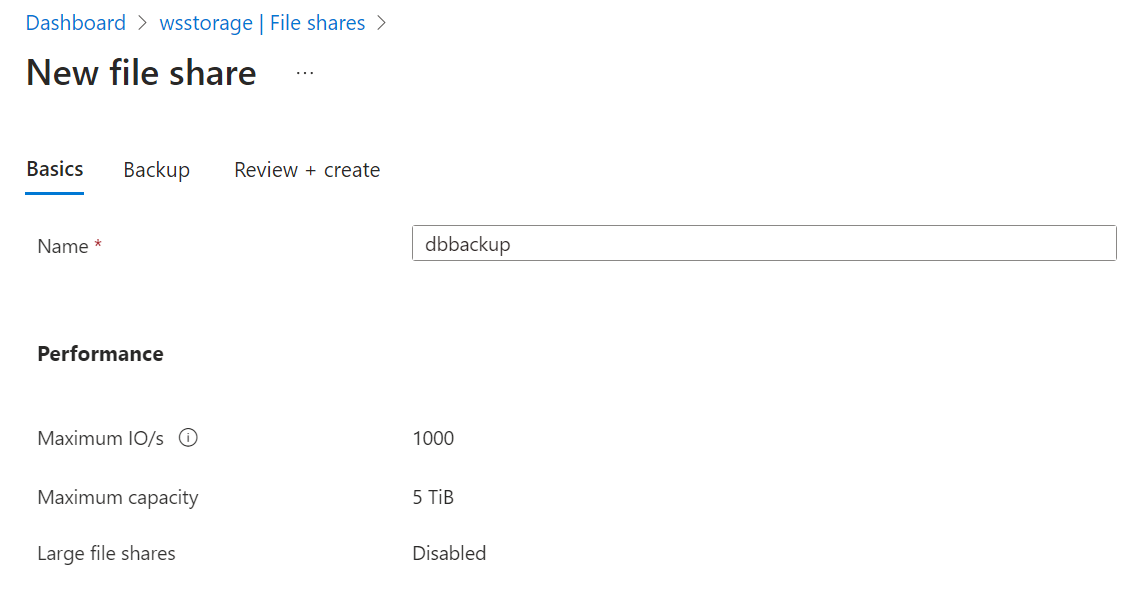
Upon entering the Storage account, there is a plus (+) sign under the File Share to create a new one. You can name it and set the backup option if you would like. Continue with next and save it.
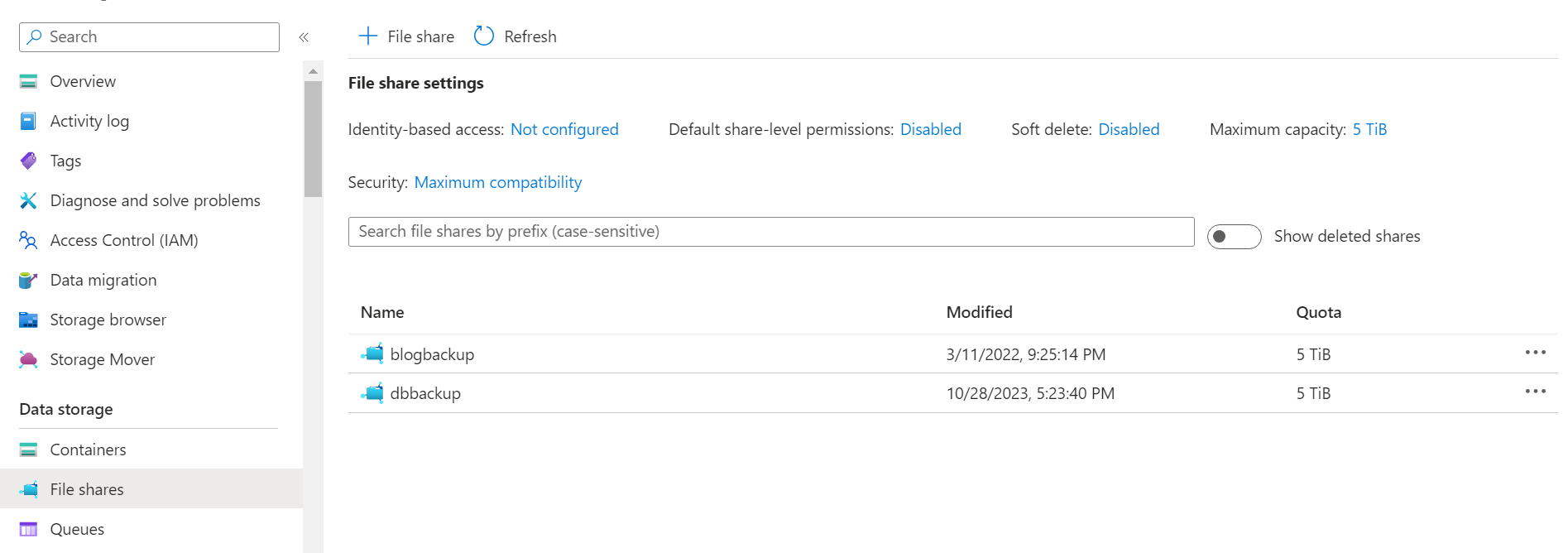
After the creation, you will see the File Share named dbbackup in the list below. You can see my other File Shares there too. Click on it and enter, or click on File Share browser on the left.
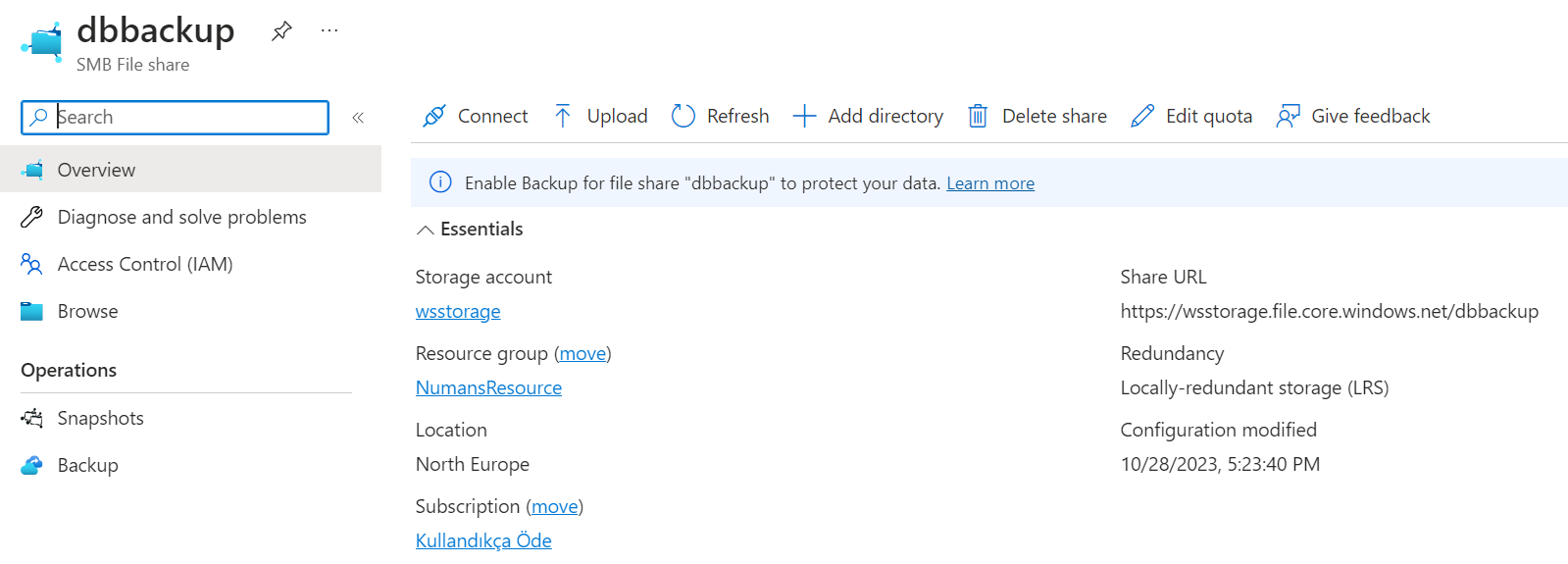
You need to copy and save the Share Url information in this page. Notice here, wsstorage is the name of my storage account and yours might be different.
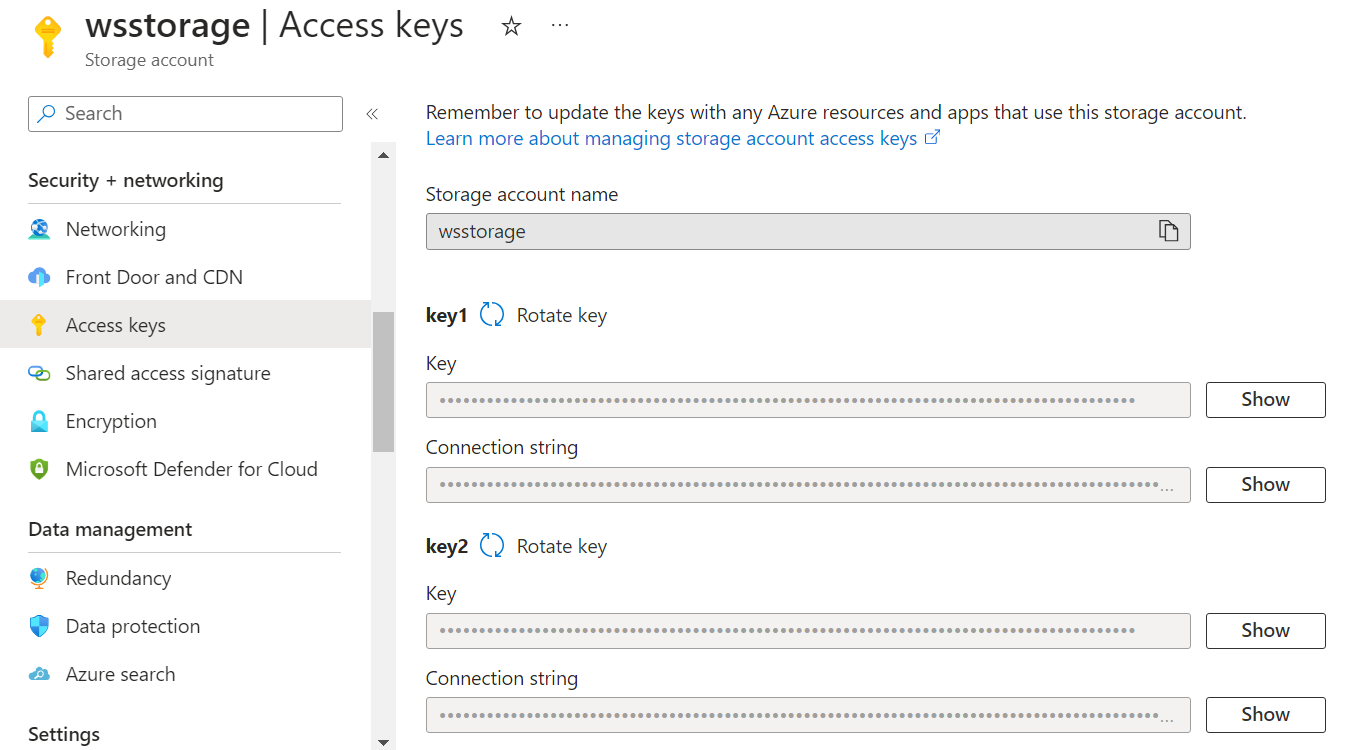
The next screen will have the connection information for your storage account. There you can create 2 different keys for your storage account. I have created them before. You should copy and save the Connection String for on of the keys.
Connecting to the Azure File Share with java
This was the necessary configuration for Azure side. Now it is time to connect to it with java. If you have created a maven project, you can use the dependencies below.
<!-- https://mvnrepository.com/artifact/com.azure/azure-identity -->
<dependency>
	<groupId>com.azure</groupId>
	<artifactId>azure-identity</artifactId>
	<version>1.3.5</version>
</dependency>
<!-- https://mvnrepository.com/artifact/com.azure/azure-storage-file-share -->
<dependency>
	<groupId>com.azure</groupId>
	<artifactId>azure-storage-file-share</artifactId>
	<version>12.12.0</version>
</dependency>
<!-- https://mvnrepository.com/artifact/com.azure/azure-core -->
<dependency>
	<groupId>com.azure</groupId>
	<artifactId>azure-core</artifactId>
	<version>1.26.0</version>
</dependency>
<dependency>
	<groupId>javax.mail</groupId>
	<artifactId>mail</artifactId>
	<version>1.4.7</version>
</dependency>
And the code below for uploading the file to Azure. Take notice of the descriptions..
private String uploadFile(String filePath)
{
	String storageConnectionString = "<your_connection_string>";
	String shareURL = "<your_share_url>";
	ShareClient shareClient = new ShareClientBuilder().endpoint(shareURL).connectionString(storageConnectionString).buildClient();
	PagedIterable<ShareFileItem> items = shareClient.getRootDirectoryClient().listFilesAndDirectories();
	// there is a small algorithm here
	// i am saving the files with a number in the name so that i can keep the lates 25 backups
	// in case the backup fails and i realise that after a week or somthing, it is all fine
	// i take a backup everyday but add one new number and delete the oldest, no overriding
	// i initialized 25 backup files first before running these jobs to begin with
	// of course i could have used backup feature of azure
	int smallest = Integer.MAX_VALUE, biggest = 0;
	for (ShareFileItem shareFileItem : items)
	{
		int backupNumber = Integer.parseInt(shareFileItem.getName().substring(6));
		if (backupNumber < smallest)
		{
			smallest = backupNumber;
		}
		if (biggest < backupNumber)
		{
			biggest = backupNumber;
		}
	}
	biggest = biggest + 1;
	// delete the oldest
	shareClient.getFileClient("backup" + smallest).delete();
	// upload the newest
	shareClient.createFile("backup" + biggest, new File(filePath).length());
	shareClient.getFileClient("backup" + biggest).uploadFromFile(filePath);
	// if no exception occurs, include the file information in the email
	return shareClient.getFileClient("backup" + biggest).getFilePath();
}
Sending mail with gmail
Since this process is going to run everynight in the background on Linux, i need an email to notify me. That is why we have javax.mail in the dependencies. The method below is sending emails.
private void sendMail(String mailcontent, boolean success)
{
	// the parameters to send a mail with gmail is down below
	// the configuration may be different for outlook or other servers
	Properties props = new Properties();
	props.put("mail.smtp.host", "smtp.gmail.com");
	props.put("mail.smtp.socketFactory.port", "587");
	props.put("mail.smtp.socketFactory.class", "javax.net.ssl.SSLSocketFactory");
	props.put("mail.smtp.ssl.trust", "smtp.gmail.com");
	props.put("mail.smtp.auth", "true");
	props.put("mail.smtp.starttls.required", "true");
	props.put("mail.smtp.ssl.protocols", "TLSv1.2");
	props.put("mail.smtp.starttls.enable", "true");
	props.put("mail.smtp.port", "587");
	Session session = Session.getDefaultInstance(props, new javax.mail.Authenticator()
	{
		@Override
		protected javax.mail.PasswordAuthentication getPasswordAuthentication()
		{
			// ATTENTION !!! this is not your real gmail password
			// you need 2 factor authentication on gmail and create a new passkey
			// google this "gmail third party access", you will understand
			return new javax.mail.PasswordAuthentication("<your_email>", "<passkey>");
		}
	});
	try
	{
		MimeMessage message = new MimeMessage(session);
		// here, Numank is the sender name
		message.setFrom(new InternetAddress("<your_email>", "Numank", "utf-8"));
		// receiver_email is the one you want to send the email to, it could be you
		message.setRecipients(RecipientType.TO, "<receiver_email>");
		// success or fail scenario is here
		message.setSubject(success ? "Backed up successfully" : "Backup failed", "utf-8");
		message.setContent("<html><body><h2>" + mailcontent + "</h2></body></html>", "text/html; charset=utf-8");
		javax.mail.Transport.send(message);
	}
	catch (Exception e)
	{
		// this has never failed :)
		System.err.println("Mail failed " + mailcontent + "\n" + e.getMessage());
	}
}
Creating a Cron Job in Linux
Finally our java codes are ready. You can create a simple class with a main method with these. Let's create a file called DBackup.jar, but the filename is irrelevant here. If you are using Maven, there must be dependencies in the Jar file. Otherwise your main class can't find and load them. I have solved this by creating a Fat-Jar. It is a jar file that contains dependencies inside. I used maven assembly plugin for this. You can add this plugin under the build section of the pom file like below.
<build>
	<finalName>DBackup</finalName>
	<plugins>
		<plugin>
			<groupId>org.apache.maven.plugins</groupId>
			<artifactId>maven-assembly-plugin</artifactId>
			<version>3.3.0</version>
			<configuration>
				<descriptorRefs>
					<descriptorRef>jar-with-dependencies</descriptorRef>
				</descriptorRefs>
			</configuration>
			<executions>
				<execution>
					<id>make-assembly</id>
					<phase>package</phase>
					<goals>
						<goal>single</goal>
					</goals>
				</execution>
			</executions>
		</plugin>
	</plugins>
</build>
Using this plugin you can run the mvn assembly command to create a jar file. Then on the Linux, terminal you can use crontab -e command (scheduled tasks in windows actually) you can list the cron jobs in Linux. This list could be empty here. You can add 1 line to create a job to run at midnight everyday. You can get help from the format below. MainClass is the class that contains the main method. "your_user" ise your Linux user.
// minute hour day_of_month month day_of_week command_to_run
0 0 * * * java -cp /home/<your_user>/Desktop/DBackup.jar MainClass
Then you can check if the cron service is running with the "systemctl status cron" command. As far as i know, it should be active automatically.
Lost of code for a simple job
This is the way i have created a tedious system for an unsophisticated job. At the end of the day, i have learned about pg_dump and invoked it with java. Also used Azure File Share with java. I am keeping 25 days of backup regularly and being notified with an email daily. I learned how to run a command on linux with a cron job. I can use these if necessary later for some reason. See you at the next post :)
Leave a comment